
Connect Slack
Open Settings → Connectors in Parley and connect your Slack account.
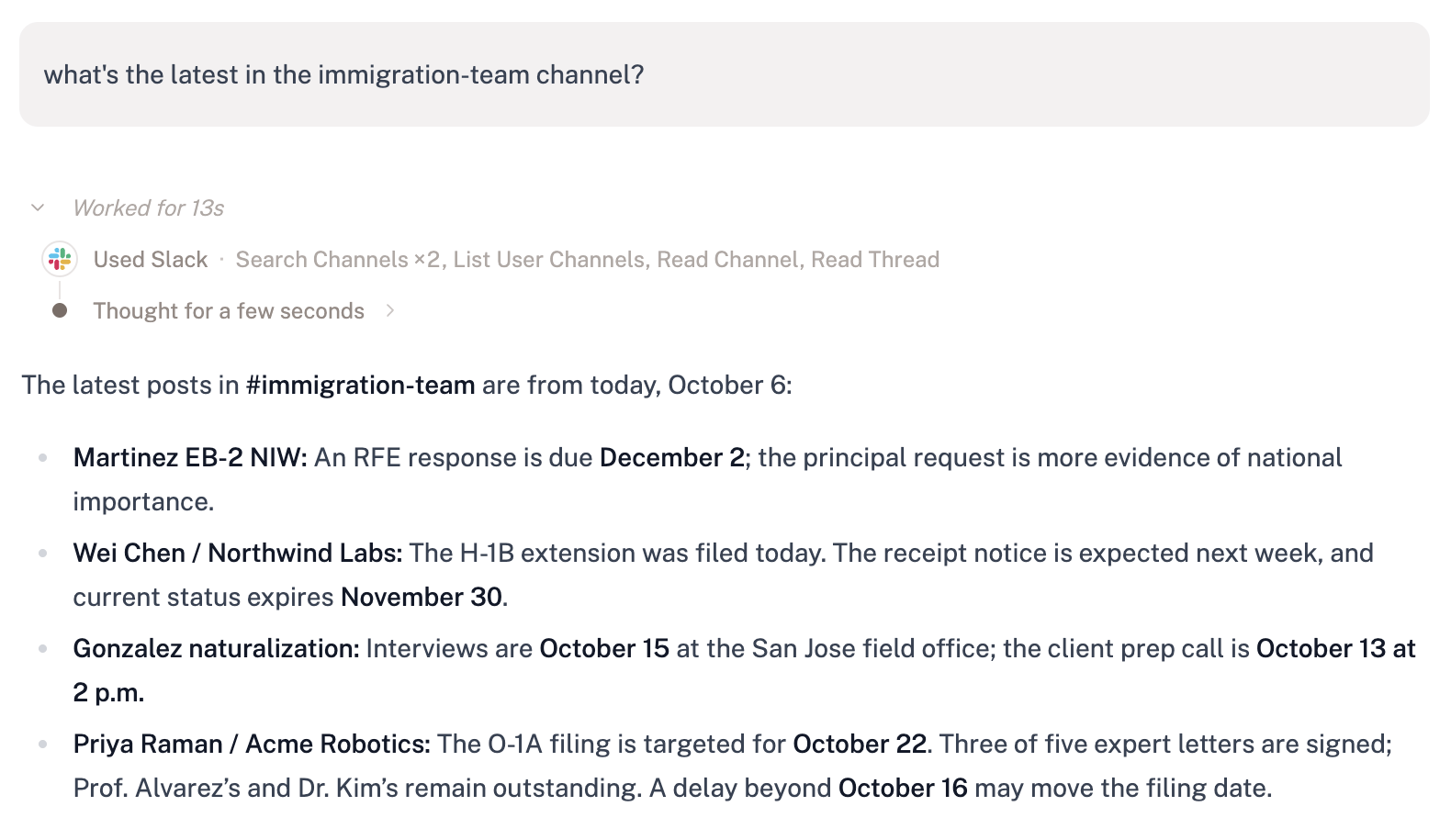
What you can do
- Find what was said. Ask about a decision, a client update, or a deadline, and Parley searches your channels, direct messages, and shared files for the answer.
- Catch up on a thread. Point Parley at a conversation and get a summary of where things landed and what’s still open.
- Bring Slack into the case. Parley uses what it finds in Slack alongside a Project’s documents and correspondence, for example when drafting a status update or checking a deadline.
- Post updates for you. Ask Parley to send a message to a channel or a colleague, or to write up a canvas, and it does so as you.
“What did we tell the client about the filing date in #immigration-team last week?”
“Summarize the thread about the Acme engagement letter and list anything still unresolved.”
“Post today’s upcoming deadlines to #case-updates.”
Connecting Slack
1
Open Connectors
In Parley, go to Settings → Connectors.
2
Connect Slack
Find Slack and select Connect. A Slack window opens.
3
Choose your workspace and allow access
If you belong to more than one Slack workspace, pick the right one in the top-right corner of the window. Review what Parley is asking for (explained below) and select Allow.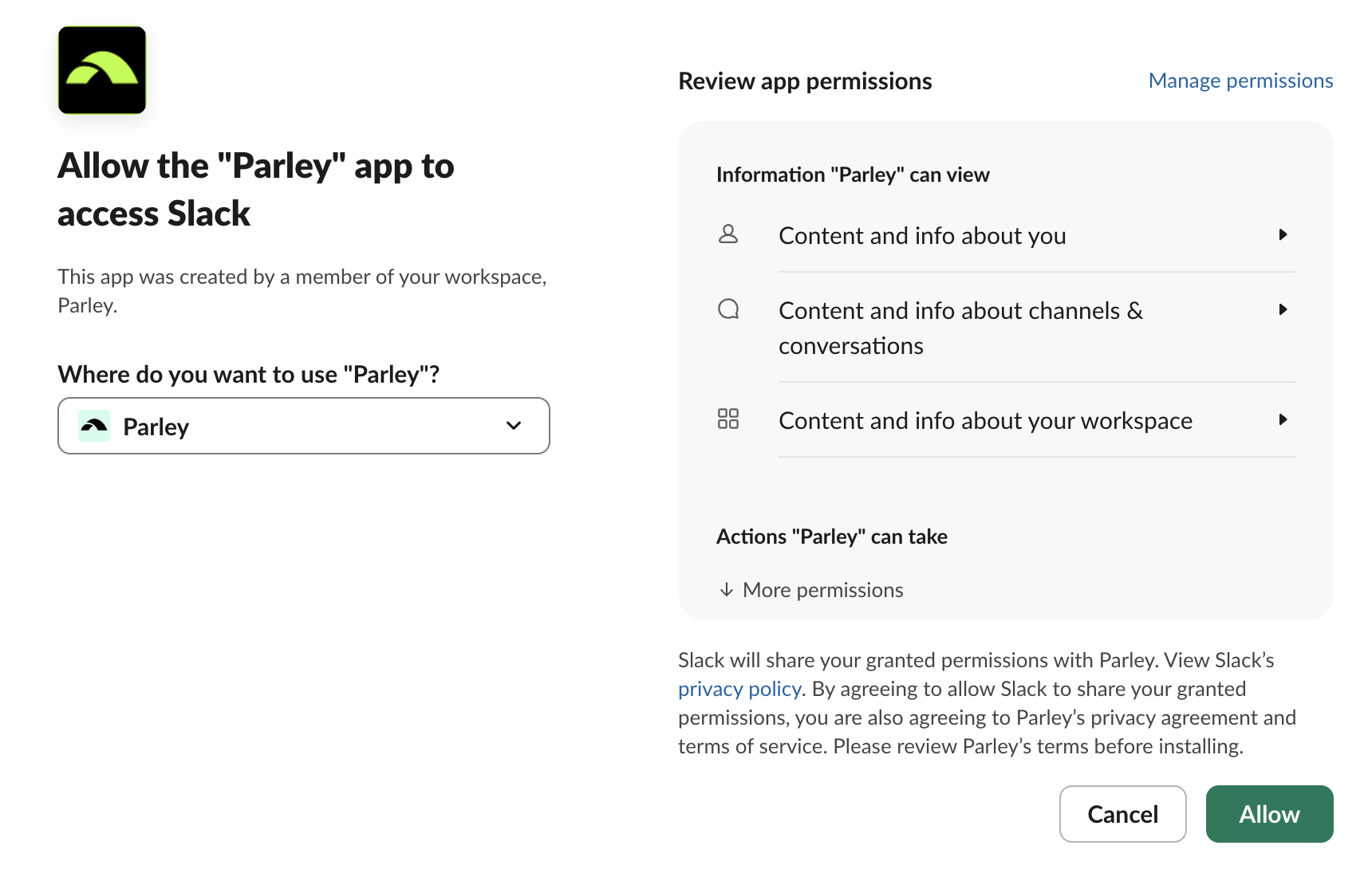
4
You're connected
The window closes, Parley confirms Connected to Slack, and Slack moves to your Connected list.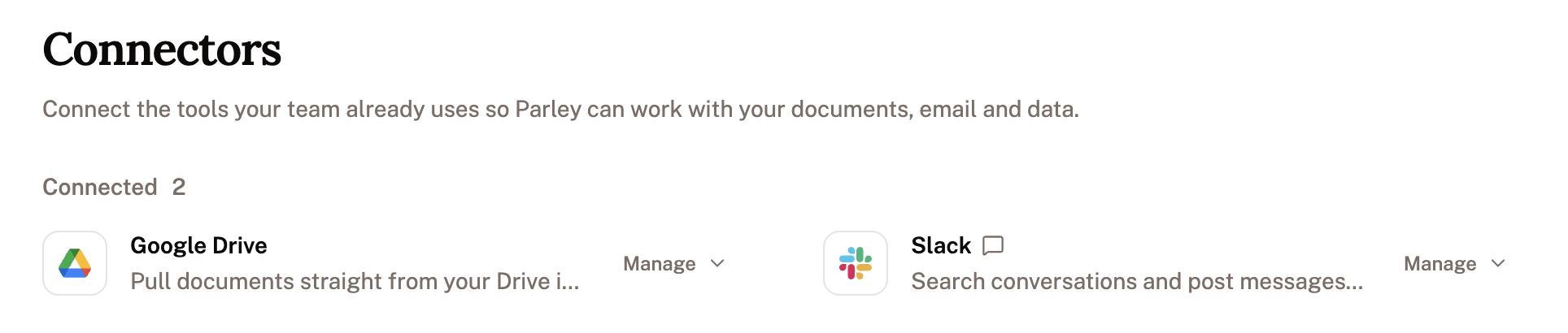
Some firms require a Slack admin to approve new apps. If Slack shows Request to install instead of Allow, send the request. Once your admin approves it, come back to Settings → Connectors and connect again.
Using Slack in Parley
Once you’re connected, Slack is turned on for every new chat. Ask your question the way you’d ask a colleague and Parley decides when to look in Slack. Naming a channel or a person helps it look in the right place. To leave Slack out of a chat, select + in the message box, open Connectors, and turn Slack off. Routines can use Slack too. Turn it on in a routine’s connectors and a scheduled routine can, for example, post a weekly matter summary to a channel.What Parley can see and do in Slack
When you connect, Slack lists what Parley is asking to do. In plain terms:
Parley works with your access, so it never sees more than you can. It can’t read private channels or direct messages you aren’t part of, and it can’t change your workspace’s settings.
Anything Parley posts goes out under your name and is marked Sent using Parley, so your team can tell. If you’d like to review a message before it’s sent, ask Parley to draft it in the chat first.
Your data
- Parley doesn’t copy your Slack workspace. It looks up messages when it needs them for a question or task, rather than importing your Slack history.
- What Parley reads stays with the chat. Messages Parley used to answer you are saved in that chat’s history, and are protected like the rest of your firm’s data in Parley.
- Your content isn’t used to train AI models for other customers. That includes your Slack messages.
- Slack’s own retention settings still apply to your messages in Slack.